


How to change your WordPress admin password
From time to time, everyone needs to reset one of their passwords. WordPress makes it easy to change your password if necessary, but to do so, you need access to the email address you used when creating your website. If you don't have it, the situation can become complicated. Fortunately, there are several workarounds for this problem.
In this article, we will teach you how to do this:
- Change your WordPress password from the control panel.
- Reset your WordPress password via the login screen.
- Reset your password using phpMyAdmin.
Before we get into the technical details, let's talk about why you might need to reset your password in the first place!
- Why you might need to reset your WordPress password
- How to change your WordPress password (3 ways)
- 1. How to change your WordPress password via the control panel
- 2. How to reset your WordPress password via the login screen
- 3. How to reset your WordPress password using phpMyAdmin
Why you might need to reset your WordPress password
Changing any of your passwords should not be a big deal. In fact, it is often one of the smartest things you can do from a security standpoint. Especially if you reuse passwords across multiple platforms, updating them periodically reduces the likelihood that someone else will gain access to your accounts.
Of course, you should avoid reusing passwords, but few people follow this advice. Furthermore, even if you use unique passwords for each website, security breaches can still occur. In such cases, it is best to change your password as soon as possible.
Advice from a professional
If you run an online business, protecting your passwords should be your top priority. We recommend using a reliable password manager for businesses to keep your confidential information safe. In addition, consider implementing double protection with WordPress two-factor authentication.
Apart from security concerns, there are several other reasons why you might need to change your WordPress password:
- You previously granted access to your account to other users, and now you want to regain full ownership of it.
- Someone else may have found out your password.
- You simply forgot your WordPress password (it happens to the best of us!).
If you find yourself in this situation, it is quite easy to simply request a reset of your WordPress admin password. In fact, these days, most platforms make changing your password a quick and painless process. After all, they also have an interest in keeping your account secure, because otherwise you won't want to continue using the site.
With all that in mind, let's talk about how WordPress password resets actually work.
How to change your WordPress password (3 ways)
In the following sections, we will look at three ways to reset your WordPress password. The first method will work if you are already logged into your control panel, even if you do not have access to your email. The second method works if you don't have access to your WordPress account, but requires access to the email address associated with your WordPress account.
Finally, we will teach you how to reset your WordPress password in the database, which works if you cannot access your email or your control panel. Without further ado, let's get down to business!
1. How to change your WordPress password via the control panel
If you can access your WordPress dashboard, you can change your password from within. Plus, it takes less time than changing your WordPress admin password via the login screen.
Below are the steps to change your WordPress password via the admin panel.
-
Go to the WordPress control panel and navigate to the Users tab > Your Profile.
-
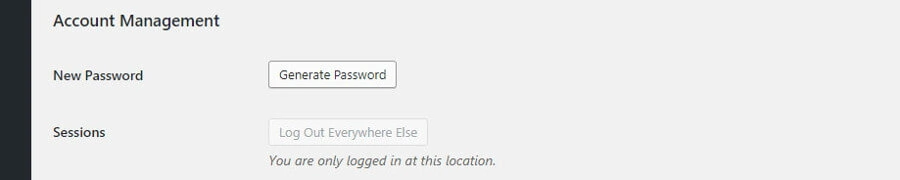
Go to the Account Management section and click on Generate Password.
-
Enter your new password and click on Update Profile.
Now that you are familiar with the process, let's take a closer look at it.
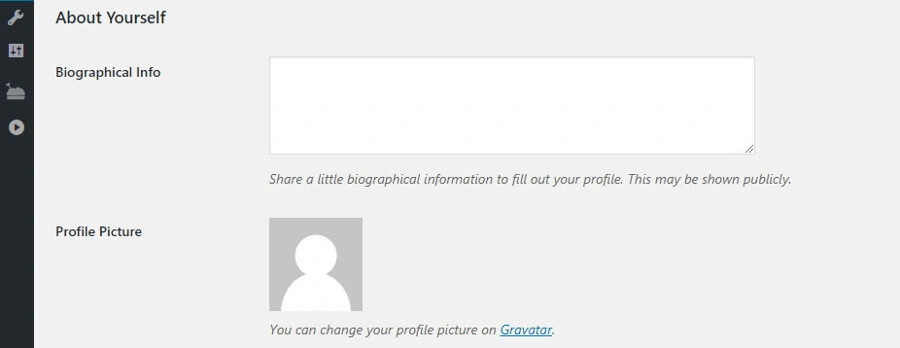
To reset your password, go to your dashboard and navigate to the 'Users' tab. Your profile. This section contains all the information related to your account, from your full name to your username, email address, and even your profile picture:
More importantly, there is also a section called Account Management, where you can change your WordPress password even if you don't remember your current one. All you need to do is click on the button labelled Generate Password:
When you do this, WordPress will generate a secure password for you. However, you can delete this password and enter any other password you like. Keep in mind that if WordPress considers your password too weak, it will still force you to confirm that you want to use it:
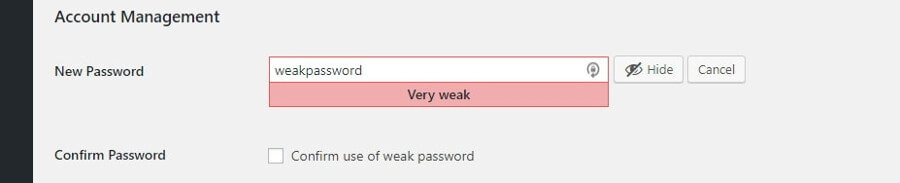
Of course, you should use a unique and secure password. Once you have entered it in the field, click on Update Profile at the bottom of the page, and you're done.
Using this method will not even log you out of your account. The same tab will reload, and you will see a simple message saying Profile updated at the top of the screen:
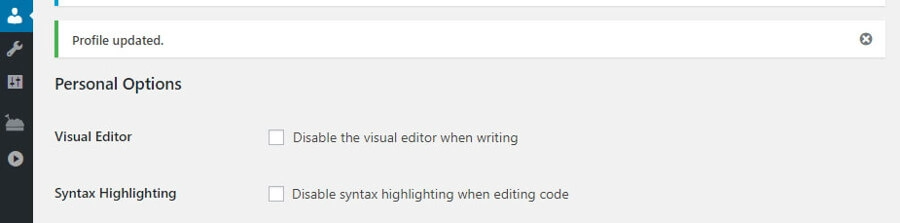
Some people skip this message and end up changing their password again because they think it didn't work the first time. If you want to check whether everything went well, just log out of your account. When you log back in, use your new password and you'll see for yourself whether everything worked (and it should!).
If for some reason you cannot access your site, you can always refer to the previous method, which describes how to reset your WordPress password via email.
2. How to reset your WordPress password via the login page
Every WordPress website has its own login page, even if you are the only registered user on the entire site. Here's what it looks like without any customisation:
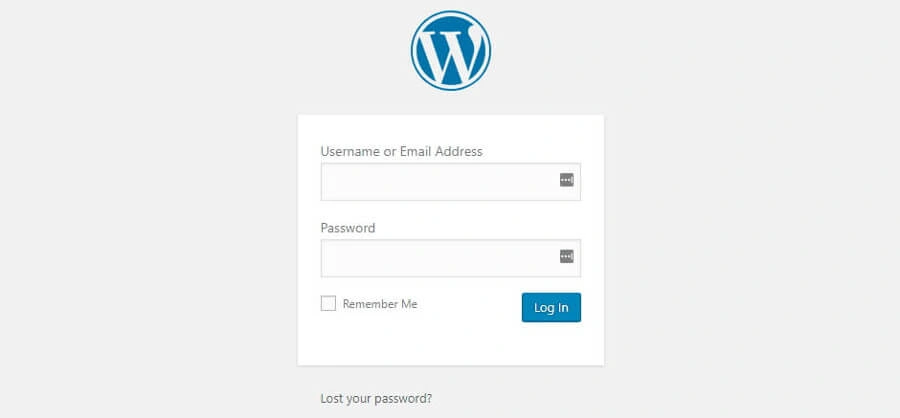
There are two fields here: one for your username or email address, and the other for your password. Since you are reading this article, you have probably lost your password, so the first step is to click on the link Lost your password? link directly below the login fields.
Next, WordPress will ask you to enter either your username or the email address associated with your account. Do this, then click the Get a new password button:

The platform will send you an email notifying you that someone has requested your WordPress password. If you receive such a notification unexpectedly, it may mean that someone is trying to hack your website. In this situation, it would be wise to change both your WordPress password and your email password:
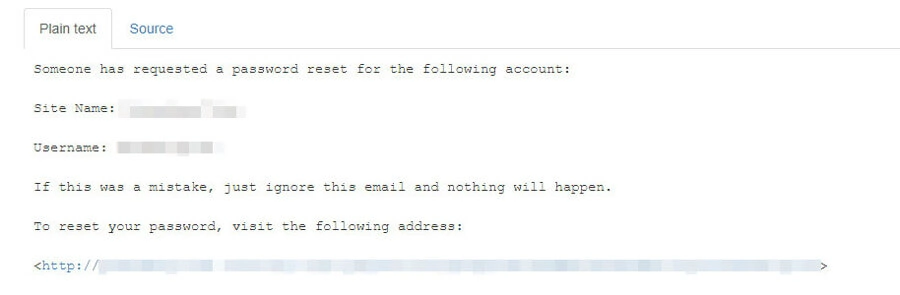
Now click on the single link contained in the WordPress password reset email, and a new page will open. Here you can change your lost WordPress password to any other. However, WordPress takes the liberty of generating a secure option for you, which we recommend you use:

Of course, you can use any other password. However, if you are afraid that you will not be able to remember a password like the one shown above, there are tools that can help you with this. Password managers are a great option if you want to create secure credentials for each site and not have to remember them every time you log in.
In any case, once you have chosen your password, you will need to click on the Reset password button. If everything went well, you will see a confirmation message similar to this:

The whole process should only take a couple of minutes, unless you spend a lot of time coming up with a new password. Next, we'll talk about another way to reset your WordPress password.
3. How to reset your WordPress password using phpMyAdmin
In this final section, we’re going to cover how to reset your WordPress password directly in your site’s database. This method is quite different from the first two, and should only be used if you can’t access both your email and your dashboard.
- Access your hosting panel, and navigate to phpMyAdmin.
- Backup your database by exporting it to your computer.
- In the database, locate the wp_users table and access it.
- Click on the Edit button and enter the password in the user_pass row.
- Encrypt the new password by clicking on the Function and selecting the MD5 option.
- Click on the Go button to save your changes.
With these quick steps in mind, make sure to carefully follow the instructions to avoid any mistakes.
Whenever you change password in WordPress, the platform stores that information in your site’s database. Within that database, you can find every single value on your site, including the passwords for your account and everyone else’s. Of course, WordPress also encrypts that information. So even if someone else gets access to your database, they shouldn’t be able to do much damage.
Editing a WordPress database is a sensitive process. If you change the wrong value, you can do some real damage to your site. With that in mind, we’re going to teach you how to access yours safely, and explain how to create a backup first.
In most cases, your web hosting provider will provide access to your database through your control panel. For example, if you log in to your Hostinger control panel, you’ll see a section called Databases. There are several options related to databases here, but the one we care about is phpMyAdmin:
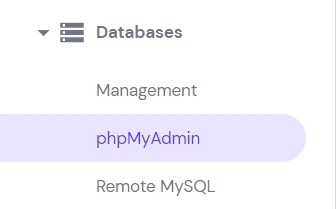
phpMyAdmin is a powerful tool that allows you to view and interact with your databases using a simple interface. When you access it, you will see a list of all your databases on the left side of the screen:
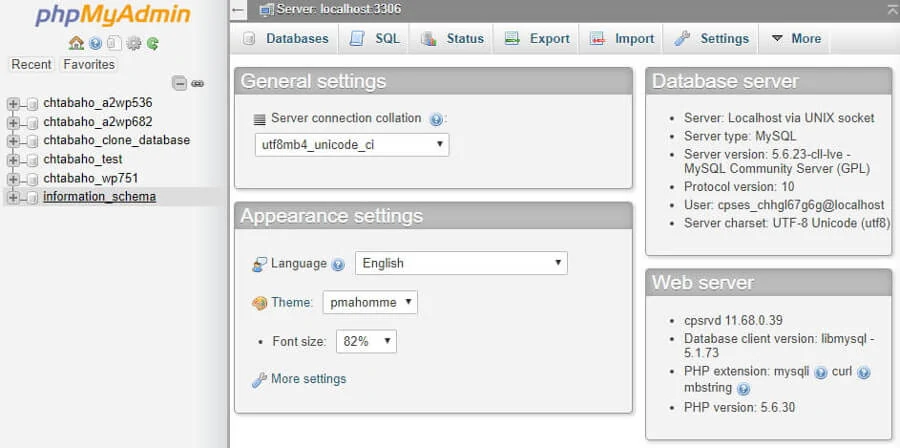
In the example above, we are using one hosting account for several WordPress sites, which is why you see so many items in this list. In most cases, there should only be one database in this list that you need to select.
On the next screen, on the right, you will see all the tables that make up your database. For example, there are tables for comments, posts, and even users of your site:
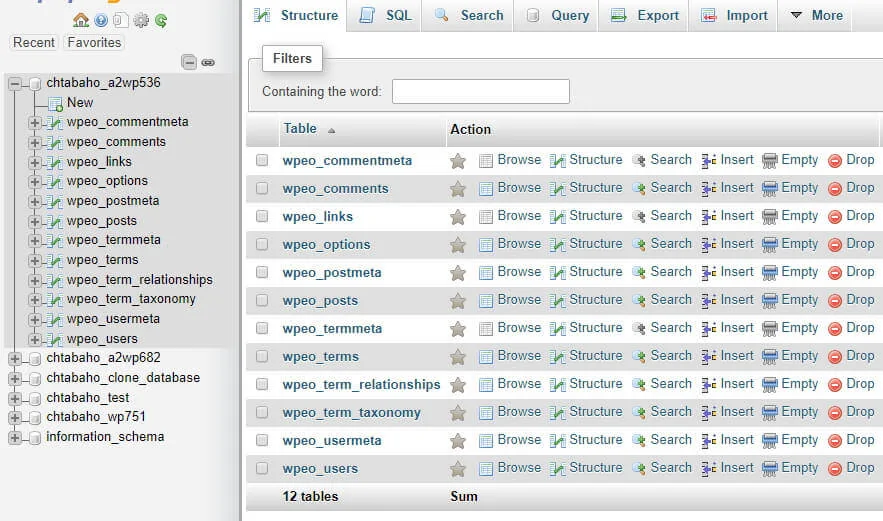
We will return to this tab later. For now, look at the top of the screen and go to the tab labelled Export. There, you can export the contents of your database as a single SQL file. To do this, select Quick and click Done:
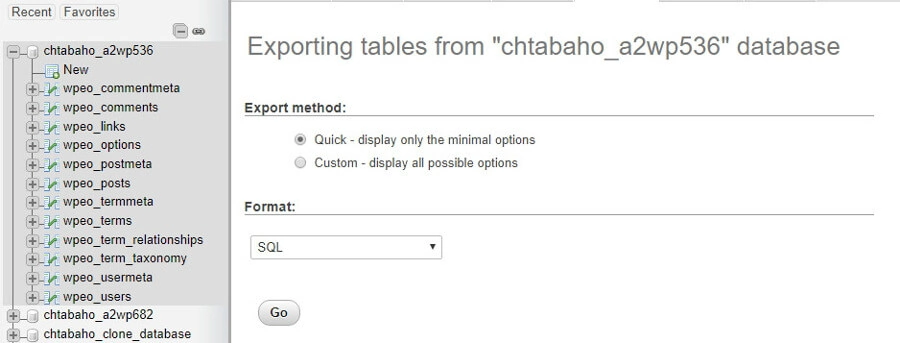
Now phpMyAdmin will download the file to your computer. Keep it in a safe place where you won't forget about it, as this backup could save your life if you edit the wrong value when making changes to your database.
Now let's return to the Structure tab at the top of the screen. You will see all the tables in your database again. The one you are looking for should be called something like this: wp_users:

In the example above, you will notice that our Users table has a slightly different name than the one we just mentioned. This is a precautionary measure that some WordPress hosts take when configuring the database to make it more difficult for attackers to hack.
In any case, on the next screen you will see a list of all registered users of your site:

We are using a test website, so there is only one account here. This single row contains all the information associated with it, including the username, password, and email address.
Your account password will be displayed in the user_pass column. However, the values you see here are encrypted, so no one can simply hack into your database and copy them. In other words, the value you see in the screenshot above is not our real password, but an encrypted value.
However, this does not mean that you cannot change the actual password. To do so, click on the Edit button to the left of the user whose password you want to change. The next screen will display fields for all the values you saw earlier, including a field for user_pass:

To change your WordPress password, you need to replace the contents of the column Value in the row User_password.
Then you will need to encrypt your new password. Click on the Function drop-down menu to the left of where you entered your new password and select the MD5 option:

MD5 is an algorithm that WordPress uses to encrypt your passwords. When you are ready, click on the Go button in the bottom right corner of the screen, and your changes will be saved.
If you check your database table again, you will see that a new encrypted value has appeared in the user_pass column of the wp_users table for your user. That's it — you've just learned how to change your WordPress password in phpMyAdmin!
Before continuing, remember that you can also use this method to change passwords for other accounts on your site. However, there are very few reasons why you would need to force a password change for another user. In short, you should only do this if the user has lost access to their account and is unable to recover it.
Conclusion
Resetting your WordPress admin password should always be easy. However, this often requires access to the email address you used when you registered. If you don't have it, things can get complicated. The good news is that, as we've seen, WordPress allows you to change your password via the database. This way, you can reset your WordPress password no matter what happens.